Blog · The Ultimate Guide to Notion Databases: Every Property Type Explained
The Ultimate Guide to Notion Databases: Every Property Type Explained
Sameer Sanagala · Dec 21, 2025
Notion databases are more than just tables and lists. The real power sits inside the properties you choose and how you use them. Each property type behaves differently and brings its own strengths to the way you structure information, automate workflows, and make your workspace feel effortless.
In this guide, we walk through:
How each property type works and what kind of data it’s designed to handle.
The practical use cases that turn simple fields into a flexible system for projects, content, tasks, clients and more.
The latest improvements in Notion’s database experience that make it easier than ever to build clean, scalable setups.
Think of this as your field manual for understanding database properties from the ground up. By the end, you’ll know how to pick the right property for the job, avoid messy structures, and build databases that stay accurate and easy to maintain as your workspace grows.
Introduction: What Makes Notion Databases So Powerful?
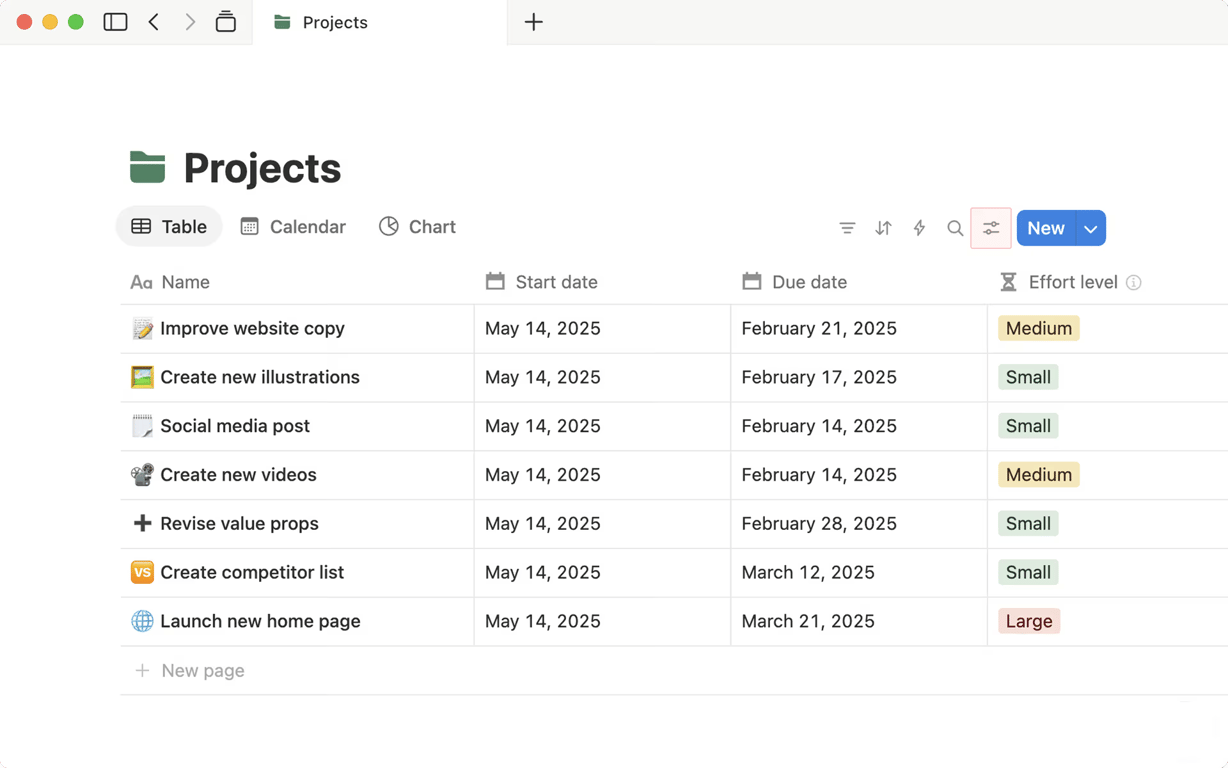
Notion databases look simple on the surface, but once you understand how they work, they become the backbone of an organized workspace. Whether you're running projects, managing clients, tracking habits or building content pipelines, databases give you a structured way to store information and connect it across your pages.
At their core, databases are containers for data. What makes them powerful is the way you can shape that data using different property types. Each property handles a specific kind of information: text, numbers, dates, files, people, formulas, relations and more. When you combine the right properties, you end up with dynamic systems that update themselves, surface what matters and remove a lot of manual work.
The magic really shows up when databases start talking to each other. A content calendar can pull ideas from a master list. A client CRM can show the status of every project linked to that client. A personal tracker can generate insights from entries you barely touch after creating them.
This guide breaks down every property type so you know exactly what it does, when to use it and how it shapes the structure of your database. Once you understand the building blocks, you’ll be able to create systems that feel clean, consistent and genuinely useful—without needing any technical background.
Understanding Database Properties (Why They Matter)
Properties are the building blocks of every Notion database. Think of them as the DNA of your data. They don't just hold information; they decide what you can actually do with it.
When you get your properties right, your database feels like magic. It becomes easy to filter, sort, and automate. But if you ignore them, your workspace can quickly turn into a messy digital junk drawer that is impossible to maintain.
It helps to categorize them into three buckets:
The Basics: Properties like Text, Numbers, and Dates capture your raw inputs.
The Organizers: Selects, Multi-selects, and Statuses keep your data consistent and groupable.
The Power Tools: Relations and Formulas pull in data from other places and automate calculations.
This is about more than just data entry. It is about intentional design. For example, using a proper 'Date' property instead of just typing "Monday" into a text field changes everything. Suddenly, you can view that task on a Calendar, plot it on a Timeline, or set an automated reminder.
Everything in Notion, from your database views to your templates, relies on this foundation. Once you understand which property to use and when, you stop fighting the software and start building systems that actually work for you.
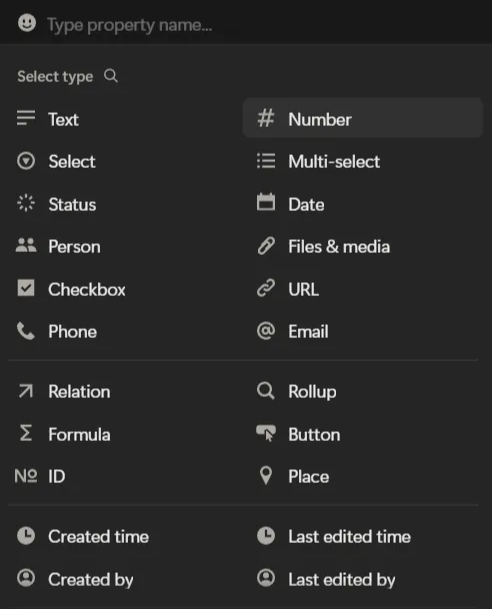
A Tour of All Notion Property Types
Now that we have covered why properties matter, let’s walk through what is actually available in your toolkit. Think of this section as your cheat sheet. Once you understand the specific purpose of each type, you will find yourself building databases that are faster, cleaner, and much easier to manage.
1. Text This is your catch-all input. Use it for free-form writing like titles, quick notes, or descriptions. It is great for flexibility, but be careful not to use it when you actually need structured data (like categories), as it makes sorting and filtering difficult.
2. Number This handles anything that can be measured, counted, or calculated. You can format these as currencies, percentages, or plain digits. It is essential if you plan to do any math later, like summing up costs or calculating averages.
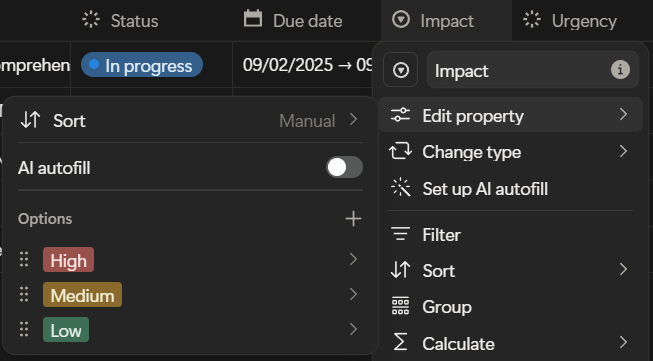
3. Select Think of this as a "single choice" dropdown. It forces you to pick one option from a list you define (like High, Medium, or Low). This is the best way to keep your data clean and consistent.
Select Property
4. Multi-Select Similar to Select, but without the "pick one" restriction. It acts like a tagging system. Use this when an item might fall into several buckets at once, such as tagging a blog post with "Marketing," "SEO," and "Q3."
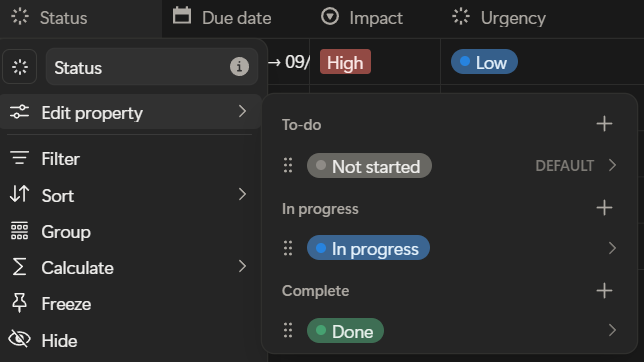
5. Status A more powerful version of the Select property designed specifically for workflows. It comes with built-in logic for "To-do," "In Progress," and "Complete." It is better than a simple Select property because it plays nicely with features like the completion checkbox on database cards.
Status Property
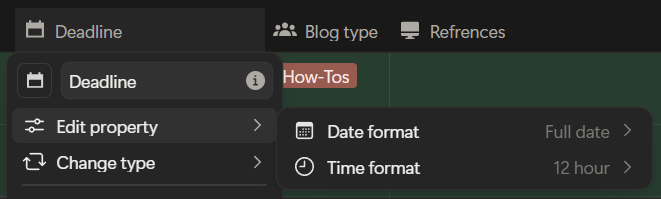
6. Date If it involves time, it goes here. Whether it is a deadline, a meeting time, or a project duration, using a proper Date property allows you to use Calendar and Timeline views and set reminders.
Date Property
7. Checkbox Simple, binary, and effective. It is a strict Yes/No toggle. These are great for trackers (like "Habit Completed") or for filtering out items, such as hiding everything where "Archived" is checked.
8. URL Keeps your links clean, clickable, and recognizable as external destinations. Use this for reference links, source materials, or competitor websites.
9. Email A standard field for email addresses. Clicking this will automatically open your default mail client, making it very useful for CRMs or contact lists.
10. Phone Just like the email property, this formats phone numbers correctly and allows for click-to-call functionality on mobile devices.
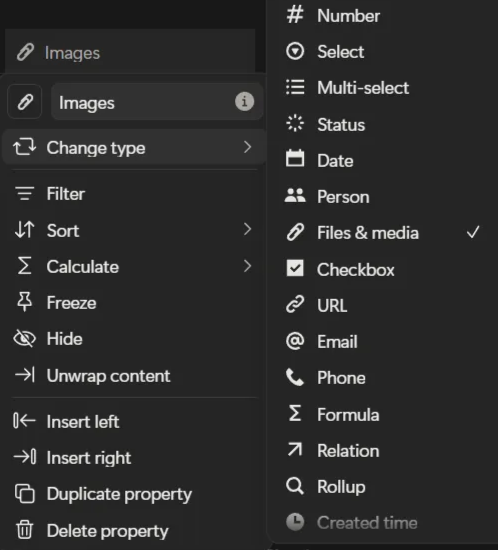
11. Files & Media This is your attachment drawer. You can upload images, PDFs, or audio files directly into the database row. It is perfect for storing signed contracts, design assets, or reference docs.
12. People The backbone of collaboration. This lets you tag other workspace members, assign tasks, and trigger notifications. It ensures everyone knows who owns what.
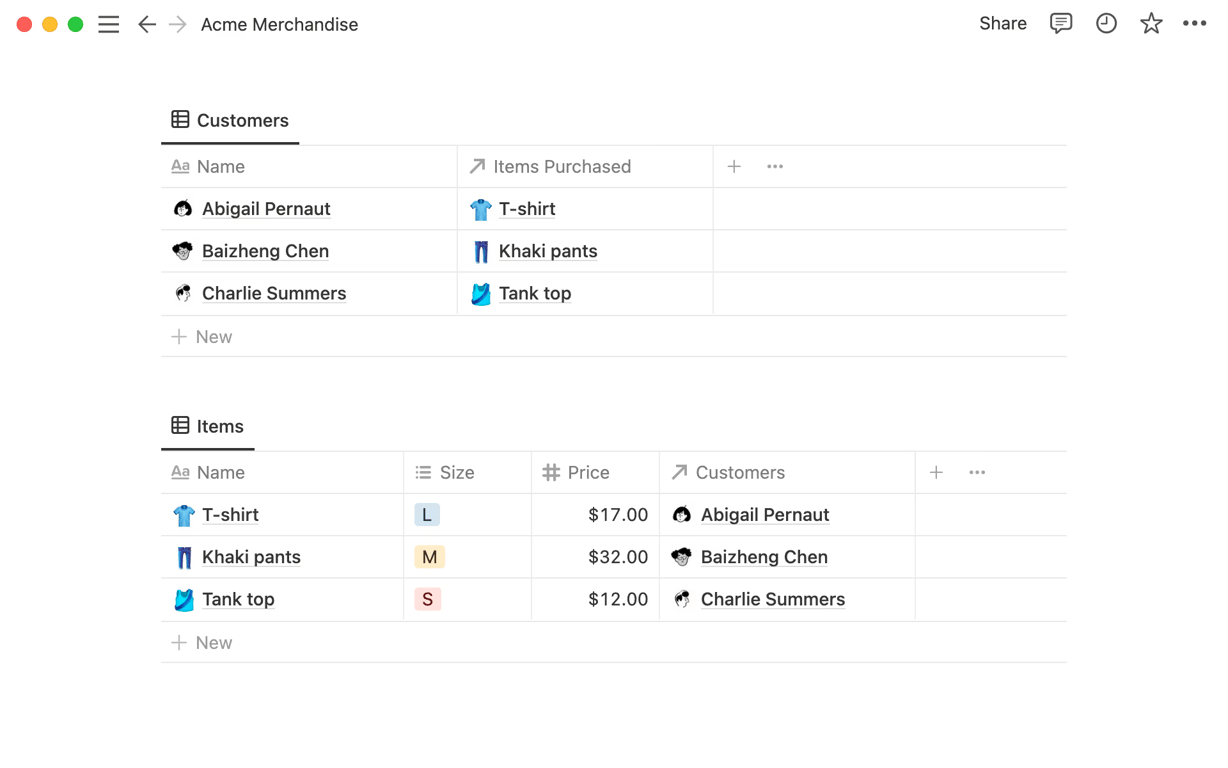
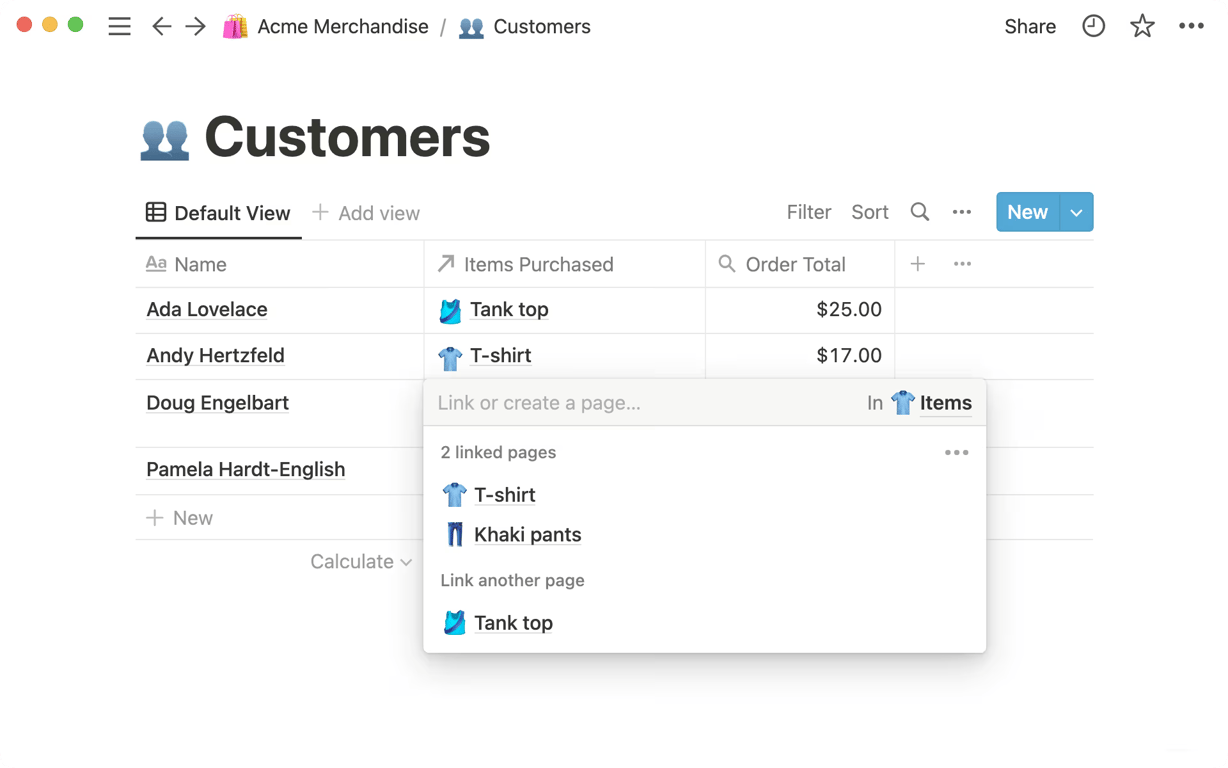
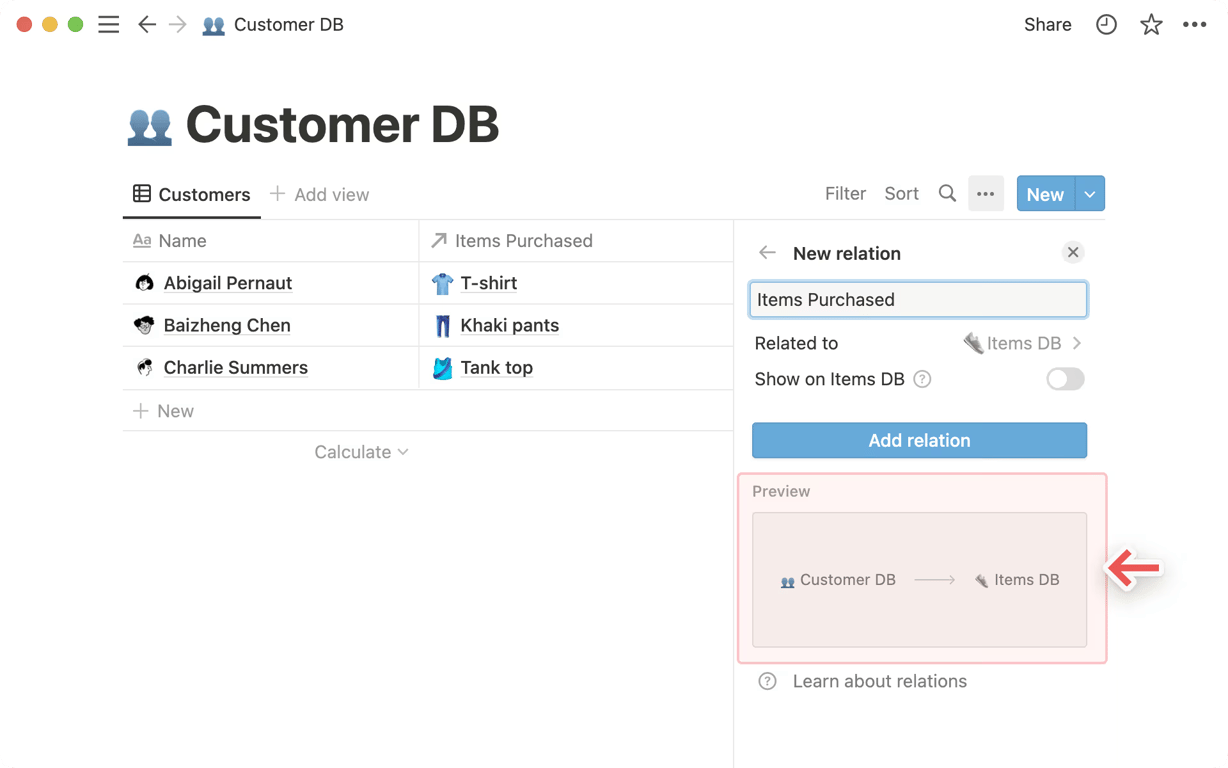
13. Relation This is arguably the most powerful property in Notion. It builds a bridge connecting two different databases. It allows you to link a specific Task to a specific Project, or a Client to an Invoice.
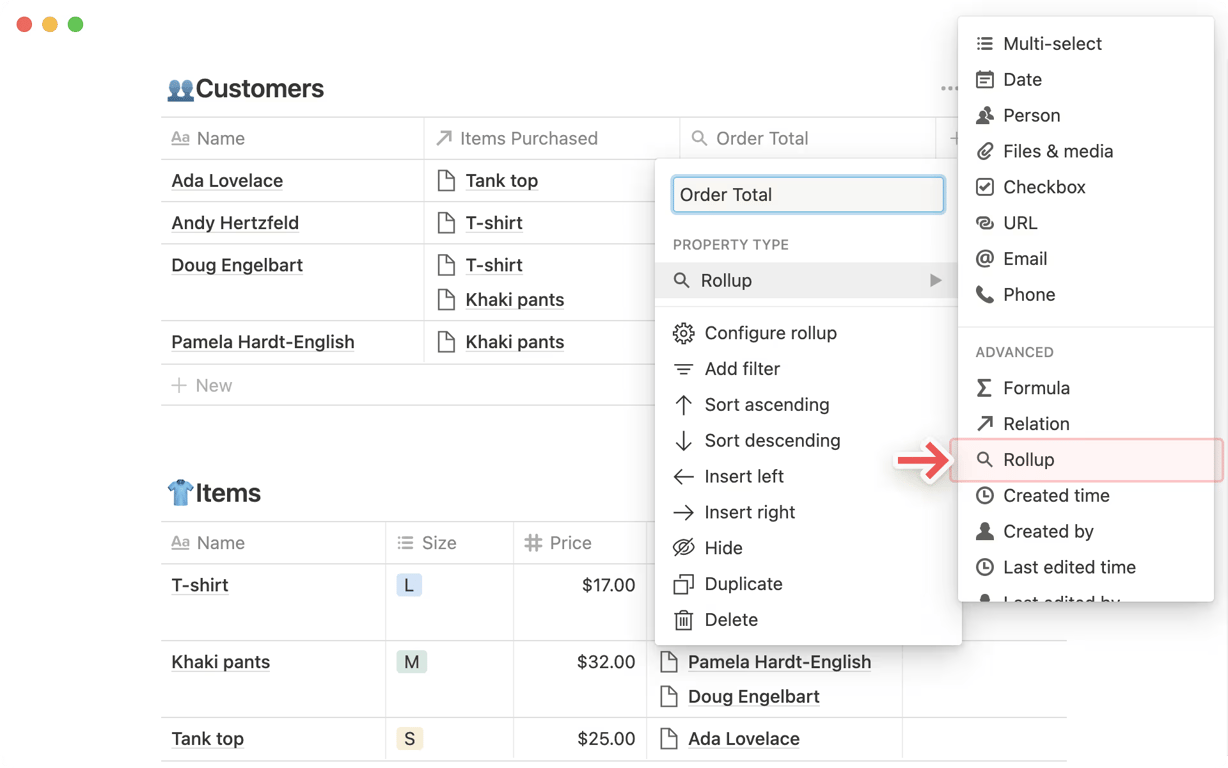
14. Rollup You can only use this if you have a Relation. A Rollup looks across the bridge you built and pulls in summary data. For example, it can look at a Project, check all related Tasks, and tell you what percentage of them are complete.
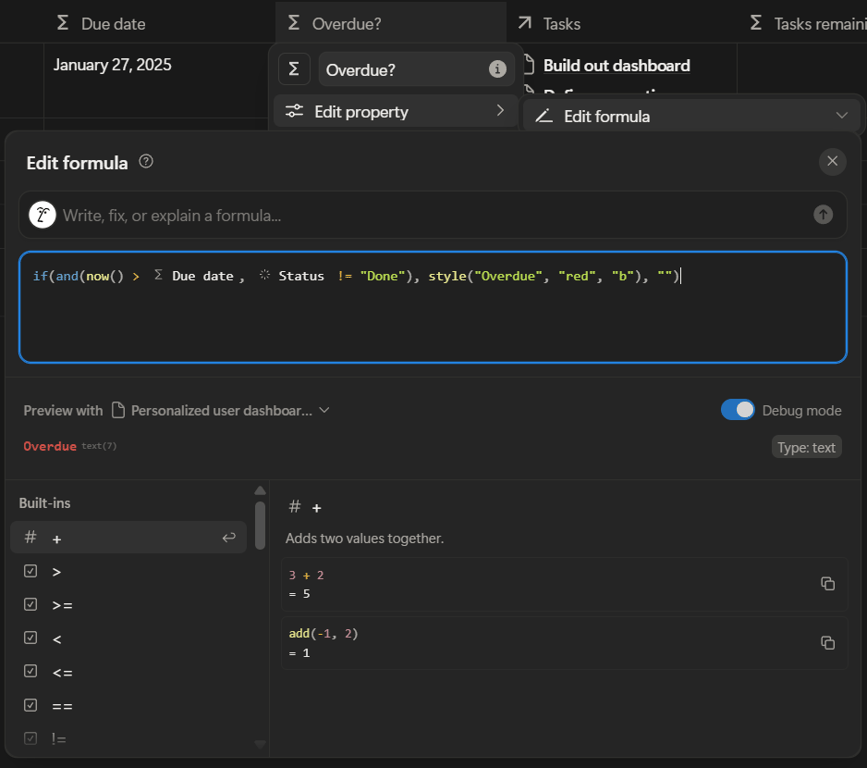
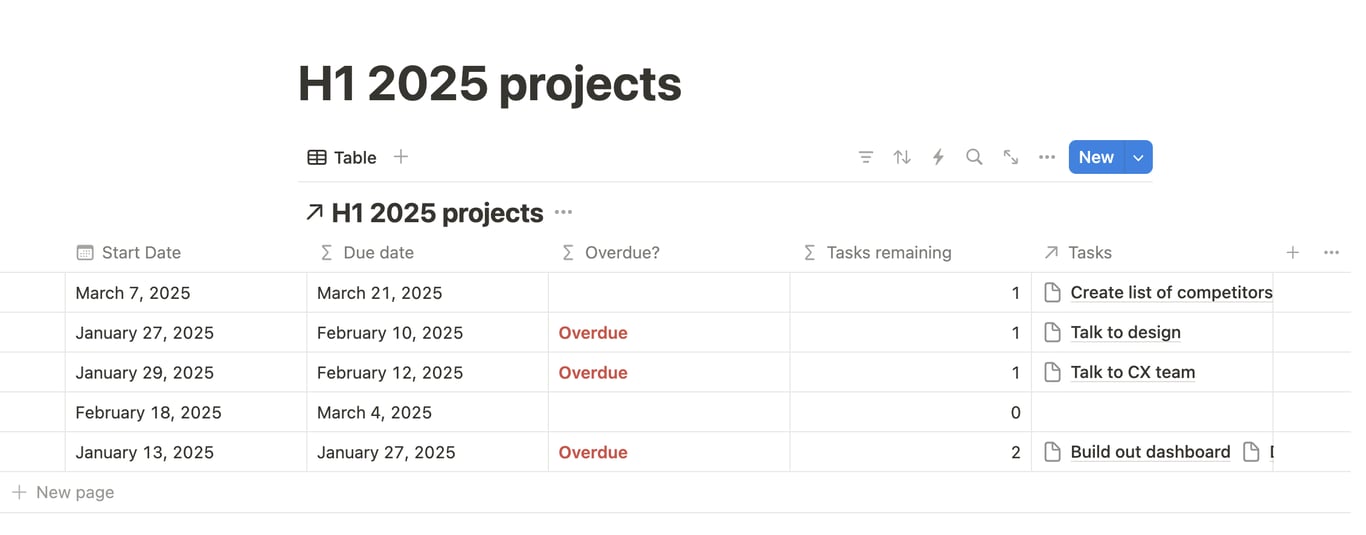
15. Formula The brain of the database. This lets you write logic to calculate, compare, or transform other properties. You can use it to create progress bars, automatic "Overdue" alerts, or complex financial calculations.
16. Created Time / Last Edited Time These are passive properties. Notion fills them in automatically. They are incredibly useful for sorting tasks by "newest" or seeing which pages haven't been touched in a while.
17. Created By / Last Edited By Similar to the time stamps above, but for users. These track who made the entry or who changed it last, which is helpful for auditing shared workspaces.
Deep Dive Into Notion’s Most Powerful Properties
Notion offers a wide variety of property types, and every single one of them has a specific role to play. But while text fields and checkboxes are essential for capturing data, there are a few special properties that do the heavy lifting.
These are the ones that unlock the real magic. They allow your databases to talk to each other, perform calculations, and automate your workflows without you lifting a finger.
If you want to move beyond simple lists and build smarter systems, these are the tools you need to master. Let’s take a deeper look at the most powerful properties in your toolkit.
Relational Properties: Linking Your Workspace Together
Relational properties are what turn Notion from a simple note-taking tool into a connected workspace. Instead of keeping data in separate tables, Relations and Rollups let your databases “talk” to each other so everything stays organized.
Relation — Connect Two Databases
A Relation links an item in one database to an item in another.
Use it when information belongs in two different places but needs to stay connected.
Examples:
Link clients → projects
Link tasks → goals
Link content → campaigns
It keeps your workspace cleaner and prevents duplicate data.
Rollup — Pull Summary Data From Those Links
Once two databases are connected, a Rollup lets you pull useful details from the linked items.
Examples:
Count completed tasks inside a project
Show total revenue tied to a client
Display earliest or latest deadline from related tasks
Rollups make dashboards and overviews automatic.
Formula: The Automation Engine
Formulas are where your database stops being just a list and starts acting like an app. They allow you to calculate values, transform text, and compare dates automatically.
Think of it this way. Instead of manually checking a deadline every morning to see if a task is late, a formula does it for you instantly. It runs in the background, updating itself whenever your data changes.
With formulas, you can:
Calculate exactly how many days are left until a project is due.
Automatically tag tasks as "Overdue" or "On Track" based on the date.
Turn a row of checkboxes into a clean progress percentage.
Combine First Name and Last Name fields into a single Full Name column.
The beauty of formulas is that they can be as simple or as complex as you need them to be. You might start with basic math, like multiplying price by quantity. Later, you can build logic that flags high priority items automatically. Once set up, they keep your data accurate without you ever having to touch it again.
People — Assign Ownership
The People property is what brings accountability into your database. It lets you assign tasks, roles or responsibilities to individuals so everyone knows who’s handling what. This is especially useful in team setups, where clear ownership can keep projects moving without confusion.
You can use it to:
assign tasks directly to teammates
track who’s responsible for reviewing or approving work
note who created, submitted or updated an item
It may look simple, but in collaborative workspaces, the People property is essential. It keeps workflows organized, clarifies responsibility and makes it easier for teams to stay aligned.
Choosing the Right Property for the Right Job
With so many property types available, the real skill is knowing which one to use and when. Picking the right property early saves you from messy databases, duplicated work, and confusing filters later on.
This section will help you think more strategically about your choices.
1. Use Text for Flexible Notes, Not Structured Data Text is great for free typing, but it does not sort, filter, or calculate well. Use it for descriptions, background info, or loose thoughts. Do not use it for categories or statuses. If you type "High Priority" in a text field, Notion cannot group it with other high priority tasks effectively.
2. Use Select or Status When You Need Consistency If you want clean filters, grouped views, or reliable categories, you must move away from manual typing.
Use Select for categories (like Topic or Department).
Use Status for workflows (like To Do, Doing, Done).
This ensures your database remains predictable and tidy because you are choosing from a set list rather than typing new variations every time.
3. Use Dates for Anything Time Based Deadlines, reminders, and schedules all belong in a Date property. Avoid typing dates into text fields unless you want them to sit there doing nothing. A real Date property allows you to visualize tasks on a Calendar or Timeline and set automatic reminders.
4. Use Numbers for Anything You Want to Calculate Later Budgets, quantities, scoring, and estimates all need the Number property. This is what formulas and rollups rely on to function. If there is any chance you will want to do math on this data in the future, start with a Number property now.
5. Use Relations When You Would Otherwise Repeat Information If multiple items share the same "parent" (like twenty tasks linked to one specific Project), do not type the project name twenty times. Use a Relation. This links the items together, prevents duplication, and keeps your data connected across different databases.
6. Use Rollups When You Need Summary Information Rollups shine when you want automatic totals, counts, or averages from those related items. They are perfect for progress tracking or dashboard summaries, such as calculating the total cost of all expenses linked to a client.
7. Use a Formula When You Want Something to Update Automatically Formulas help you simplify repetitive work. You can use them for auto labels, progress percentages, calculated deadlines, or combining text fields. The rule of thumb is simple. If you find yourself manually updating a specific property over and over again based on other data, it probably needs to be a formula.
8. Use Files & Media Only When You Need Actual Attachments Images, PDFs, and slide decks belong here. However, if you are linking to files stored in Google Drive or Dropbox, stick to the URL property. It keeps your database lighter and cleaner than uploading duplicate files.
Common Mistakes When Building Databases
Even with the best intentions, a database can get messy very quickly if you aren't careful. Here are a few common pitfalls to watch out for, and why they usually cause headaches down the road.
Letting your tags get out of hand It is easy to accidentally create three versions of the same tag, like "In progress," "In-progress," and "Doing." This breaks your filters because Notion sees them as three different things. It is much better to keep your list of options short and strict.
Overcomplicating with formulas Just because you can write a formula for everything doesn't mean you should. Too many complex scripts can make your workspace feel heavy or confusing to edit later. Only use them when they actually save you time or solve a specific problem.
Vague property names Calling a column "Info" might make sense today, but in three months, you won't remember what belongs there. Be specific. Use names like "Publish Date" or "Client Budget" so anyone can understand the data instantly.
Using text for everything This is the classic beginner mistake. If you type a date or a price into a Text field, Notion treats it like a word. You lose the ability to sort chronologically or sum up costs. Always pick the specific property type designed for that data.
Duplicating data instead of relating it If you find yourself typing the same project name into twenty different task rows, stop. Use a Relation property instead. This keeps your data connected and ensures you only have to update that project name in one place if it changes.
Conclusion: Master Properties, Master Notion
If there’s one skill that elevates your entire Notion workspace, it’s understanding database properties. They’re the building blocks behind every system you create, from a simple task list to a full content calendar, CRM or project hub. Once you know what each property does and when to use it, your databases become cleaner, faster and far more flexible.
The more intentionally you choose your properties, the less time you spend fixing messy setups or updating things manually. Whether you're planning content, tracking tasks, managing clients or running an entire business inside Notion, mastering properties gives you the confidence to build systems that scale with you.
Learn the basics, experiment a little and build gradually, the more you work with properties, the more powerful Notion becomes.